
Apps Games Articles
Samsung My Files
Samsung Electronics Co., Ltd.
Rating 4.2star icon
Editor's summary
Editor rating
star icon star icon star icon star icon
half star icon
4.5

One-line summary Samsung My Files is one of the cleanest and most practical file managers on Android, but cloud quirks and a few workflow stumbles keep it from being an automatic recommendation for power users.

  • Installs

    1B+

  • Developer

    Samsung Electronics Co., Ltd.

  • Category

    Tools

  • Content Rating

    Everyone

  • Latest version

    VARY

  • Package

    com.sec.android.app.myfiles

Screenshots
In-depth review
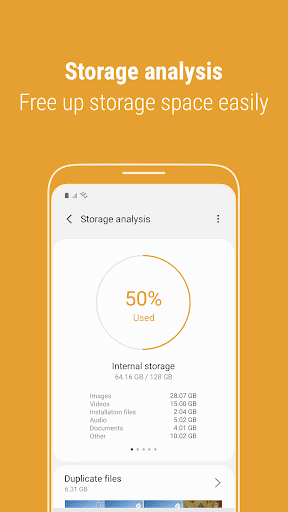
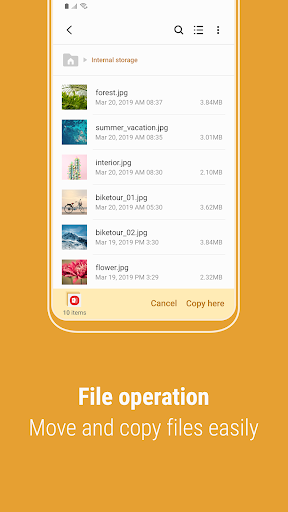
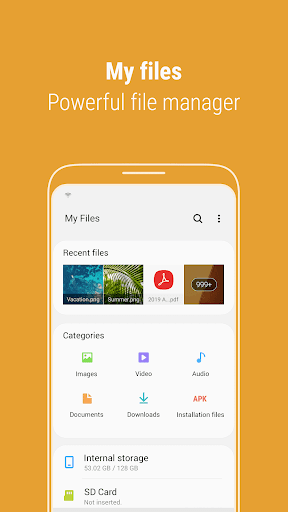
Samsung My Files is the kind of app that rarely gets celebrated until you need it, and then suddenly it becomes one of the most important utilities on your phone. After spending time with it as a daily file manager rather than just a preinstalled afterthought, I came away impressed by how mature and dependable it feels for ordinary storage tasks. It is not flashy, and it does not try to reinvent file management on a phone. Instead, it focuses on being fast, clear, and useful, which is exactly what this category needs. The first thing that stands out in regular use is how approachable the interface is. My Files feels closer to a desktop-style file explorer than many mobile file managers, but without becoming cluttered. Browsing through internal storage, SD card storage, USB drives, and connected cloud accounts is straightforward. Categories such as images, videos, documents, downloads, and APK files make quick retrieval easy, while the more traditional folder view is there when you want precise control. In practice, that balance works very well. If I just wanted to grab a PDF or clear out downloaded videos, the category view was quicker than digging through nested folders. If I needed to organize project folders manually, the standard directory structure was easy to navigate. Performance is another major strength. In day-to-day use, the app feels snappy. Opening folders, selecting multiple files, moving content around, compressing files, or unpacking ZIP archives all happen with very little friction. That responsiveness matters more than it sounds. File management apps are often judged by tiny delays and little annoyances, and Samsung My Files avoids most of them. It gives the impression of being tightly integrated with the device, and that helps it feel more stable and polished than a lot of utility apps that overload the screen with extra tools or visual clutter. One feature I ended up using more than expected is storage analysis. This is where My Files becomes more than a basic browser and starts acting like a practical cleanup tool. It makes it easier to find large files and understand where space is going, which is genuinely helpful when your storage starts filling up and you do not want to manually hunt through every folder. It is not a miracle cleanup solution, but it gives you enough visibility to make smart decisions quickly. For a utility that many people will open only when something has gone wrong, that clarity is a big win. Cloud integration is also a meaningful part of the experience. Being able to connect services like Google Drive and OneDrive from inside the same app is convenient, especially if you regularly move files between local storage and the cloud. When it works well, it makes the app feel like a central hub rather than just a local file browser. I found Google Drive integration especially straightforward, and for basic transfers it removes a lot of unnecessary app switching. That said, this is not a perfect file manager, and the weak spots become more noticeable if you rely on it heavily. The biggest issue is that cloud support can feel uneven. The app clearly wants to be your all-in-one manager for local and cloud storage, but in practice some cloud workflows are less reliable than others. Local file handling is excellent; cloud handling is good until it suddenly is not. If your workflow depends on frequent movement between phone storage and specific cloud services, that inconsistency may be frustrating. Another annoyance is that some file operations are not always as efficient as they should be. My Files is generally simple, but there are moments where simple turns into slightly cumbersome. Moving or copying files to a deep destination folder can be more tedious than it ought to be if you have a large, nested folder structure. In a file manager, those little steps matter. If you organize a lot of content across many directories, every extra tap becomes noticeable. I also ran into some limitations in the way the app handles edge-case organization tasks. It is very good at mainstream file management, but less elegant when you want more advanced control over overwrite behavior, search-assisted destination picking, or very specific sorting habits for niche file collections. None of that makes the app bad; it just means power users may occasionally hit the edges of its convenience-focused design. Still, the core experience remains strong because Samsung My Files gets the fundamentals right. It is clean, dependable for local storage work, and free of the ad-heavy nonsense that ruins many file managers on Android. It does not constantly nag, it does not bury simple actions under gimmicks, and it looks and feels like a tool made to solve a problem rather than monetize your patience. That alone gives it an advantage. Who is it for? It is ideal for Samsung phone and tablet owners who want a no-drama file manager that handles the basics and a bit more. It is especially good for people who need to browse downloads, clean up storage, manage media, unzip files, and occasionally move content to or from cloud storage without learning a complicated interface. It is also a strong option for users who are tired of third-party file managers packed with ads or unnecessary extras. Who is it not for? If you are a heavy-duty power user who lives in cloud storage, demands highly granular file operation controls, or expects every move/copy workflow to be optimized for deep directory structures, you may find the rough edges more irritating than casual users will. Likewise, if you want a file manager built around advanced customization rather than ease of use, this may feel a bit restrained. Overall, Samsung My Files succeeds because it respects your time. It opens fast, makes sense immediately, and handles the vast majority of file tasks with confidence. Its cloud wrinkles and occasional workflow hiccups stop it just short of greatness, but for most people, especially on Samsung devices, this is still one of the best file managers you can install or keep using.