Apps Games Articles
Control Center Screen Recorder
FA developer
Rating 4.6star icon
Editor's summary
Editor rating
star icon star icon star icon star icon empty star icon
4.4

One-line summary Control Center Screen Recorder is easy to like because it makes screen capture feel fast and accessible, but we’d hesitate if you want a truly minimal, distraction-free utility.

  • Installs

    10M+

  • Developer

    FA developer

  • Category

    Personalization

  • Content Rating

    Everyone

  • Latest version

    2.4.5.13.11

  • Package

    com.tuanfadbg.controlcenterios

In-depth review
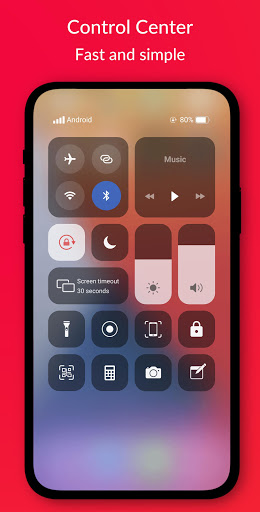
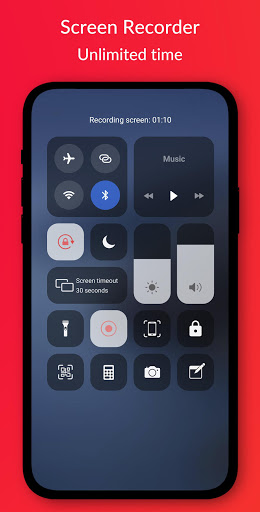
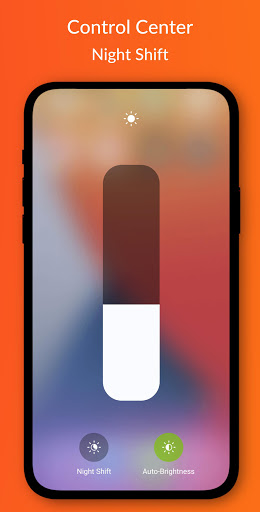
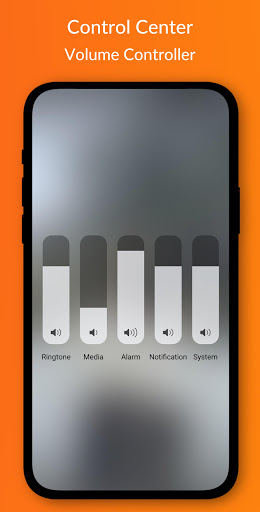
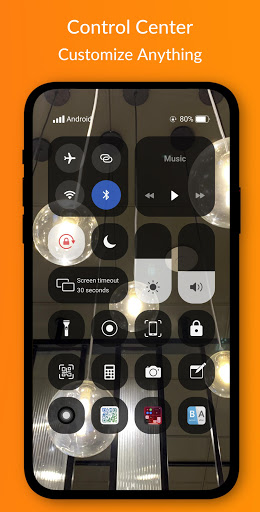
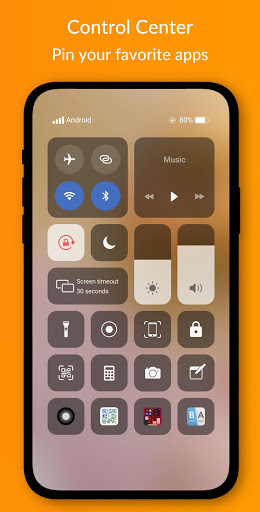
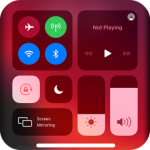
Control Center Screen Recorder is one of those Android utility apps that tries to do two jobs at once: give you practical screen recording tools and wrap them inside an iOS-style control center interface. After spending time with it as an everyday utility rather than just opening it for a quick test, what stood out most was how approachable it feels. This is not the kind of app that demands a long setup process or expects you to dig through hidden menus just to start capturing your screen. It leans heavily into convenience, and for the most part, that works in its favor. The first thing we noticed in daily use was the app’s emphasis on quick access. That matters more than it sounds. A screen recorder lives or dies by how quickly you can start it when you suddenly need to capture a bug, save a fleeting moment from a game, or record a walkthrough for someone. Control Center Screen Recorder generally does a good job of reducing friction. It feels like an app built for people who want recording controls close at hand, not buried several taps deep. In practice, that makes it genuinely useful, not just technically capable. The second strength is that the app feels designed for people who enjoy a more stylized phone interface. The control-center concept gives it a distinctive personality. For some users, that iOS-inspired look will be a big part of the appeal. More importantly, it is not just cosmetic fluff. The visual layout helps make functions easier to spot quickly, especially for users who like toggles and shortcuts grouped in one place. We found that this contributes to a smoother habit-forming experience. Once you get used to where things are, the app becomes something you can interact with almost automatically. A third thing the app gets right is broad accessibility. Being free and clearly aimed at a mass audience, it does not feel intimidating. You do not need to be a power user to understand what it is trying to do. That makes it a solid pick for students recording tutorials, casual gamers grabbing clips, or anyone who occasionally needs to show what is happening on their screen. The app’s mainstream feel is part of its charm: it wants to be helpful first. That said, the same design choices that make it friendly can also make it feel a bit busy. This is our biggest reservation. If you come to this app wanting a pure, stripped-down screen recorder with almost no visual noise, Control Center Screen Recorder may feel like more interface than you asked for. The control center styling gives it personality, but it can also create the sense that you are using a customization tool first and a recording tool second. We never found it impossible to use, but we did sometimes wish for a calmer, cleaner presentation. The second weakness is that apps of this type can demand a little patience in the early phase, especially when you are granting permissions and adjusting how they sit over the rest of the system. In our use, the overall direction was clear, but it still had that familiar Android utility-app feel where you need to spend a bit of time getting everything situated before the experience becomes seamless. Once settled, it is convenient. Before that, it can feel slightly more involved than the simplest recorder apps. Our third complaint is more about focus than functionality. Because the app is built around a broader control-center identity, screen recording does not always feel like the only star of the show. Some users will love that because it makes the app feel richer and more versatile. Others will see it as unnecessary overhead. We fell somewhere in the middle. It is not a dealbreaker, but if your only goal is to record screen content with as little extra interface as possible, there are moments when this app feels like it is trying to be a full environment rather than a single-purpose tool. In actual everyday use, though, Control Center Screen Recorder remains easy to recommend. We liked it most in those repeated, low-drama scenarios that define a good utility app: opening it quickly, getting to the capture controls without confusion, and not feeling like the app was fighting us. That sounds basic, but it is exactly what many apps in this category get wrong. This one understands that utility apps need to feel available at a moment’s notice. Who is it for? It is best for Android users who like having lots of convenient controls nearby, enjoy the iOS-inspired aesthetic, and want screen recording wrapped into a broader, shortcut-heavy experience. It is also a good fit for casual users who value ease of access more than absolute minimalism. Who is it not for? If you dislike layered interfaces, want a dead-simple recorder with almost no extra design flourishes, or prefer highly focused single-purpose tools, this probably will not be your ideal match. Minimalists may find it a little too decorative and a little too eager to do more than record. Overall, Control Center Screen Recorder succeeds because it makes a practical task feel immediate and approachable. Its biggest strength is convenience, and its biggest drawback is that the interface can sometimes feel busier than necessary. Still, after using it as a real utility instead of just sampling it for a few minutes, we came away with a positive impression. It feels useful, confident, and built for everyday people rather than enthusiasts alone. That balance goes a long way, and it is a big reason the app holds up well beyond first launch.