
Apps Games Articles
Adobe Acrobat Reader: Edit PDF
Adobe
Rating 4.5star icon
Editor's summary
Editor rating
star icon star icon star icon star icon
half star icon
4.5

One-line summary Adobe Acrobat Reader is still one of the easiest PDF apps to trust for reading, signing, annotating, and light editing on mobile, but the growing push toward subscriptions and AI extras means power users will occasionally run into paywalls or clutter.

  • Installs

    500M+

  • Developer

    Adobe

  • Category

    Productivity

  • Content Rating

    Everyone

  • Latest version

    VARY

  • Package

    com.adobe.reader

In-depth review
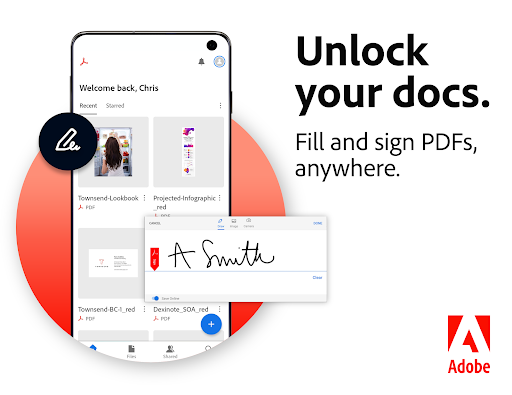
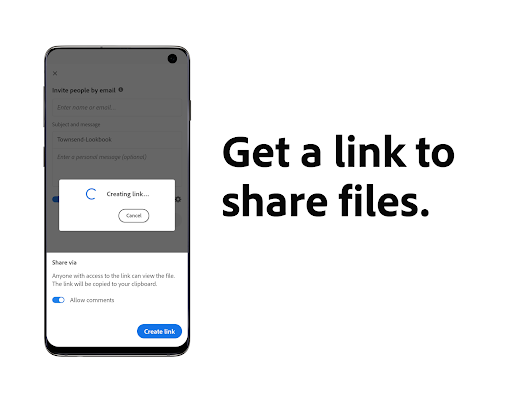
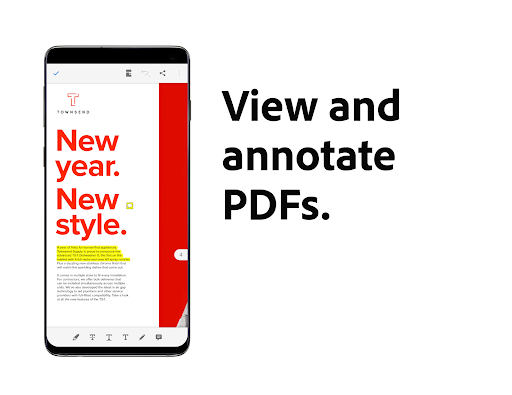
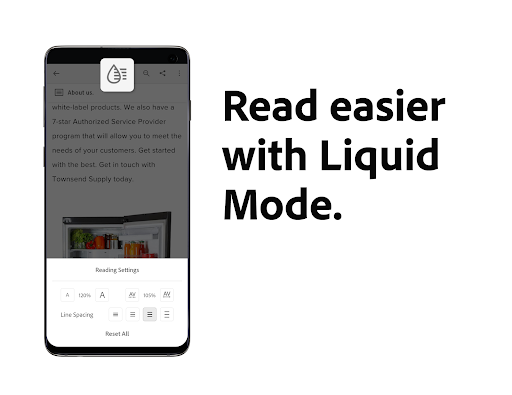
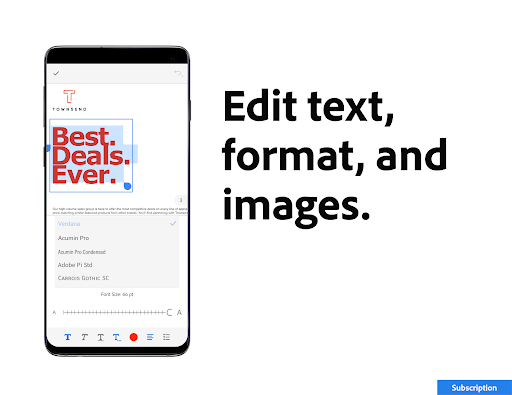
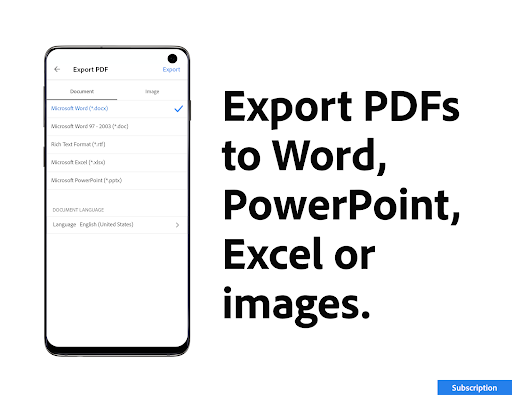
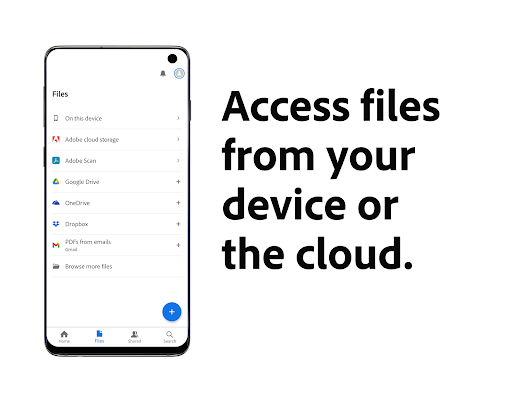
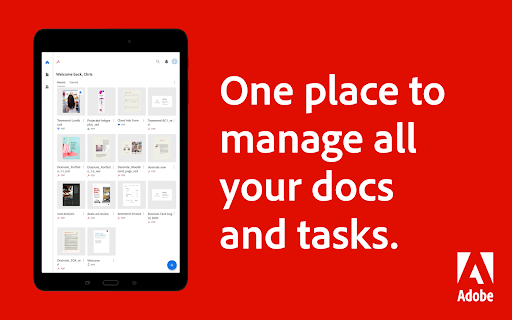
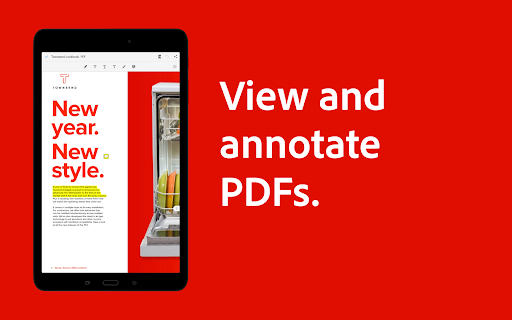
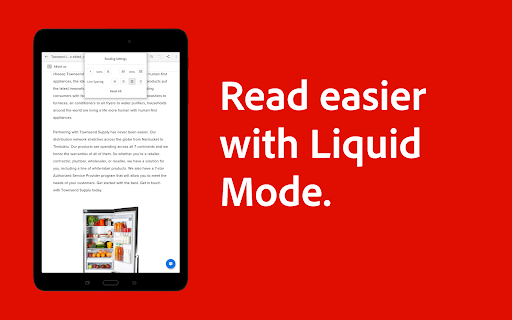
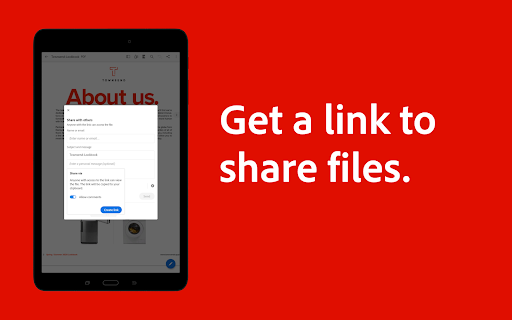
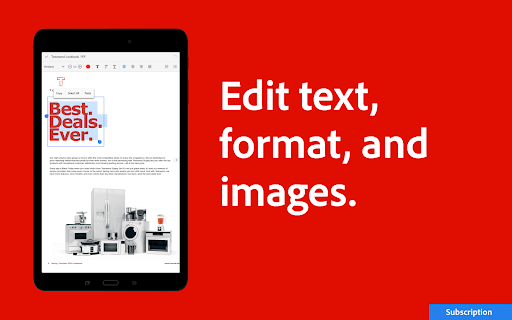
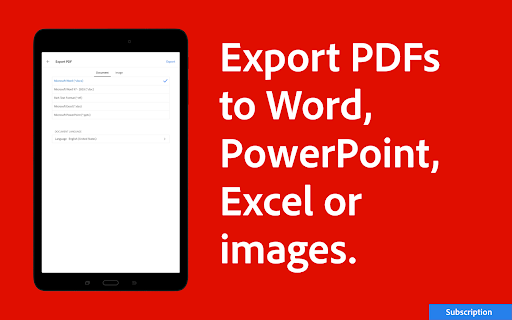
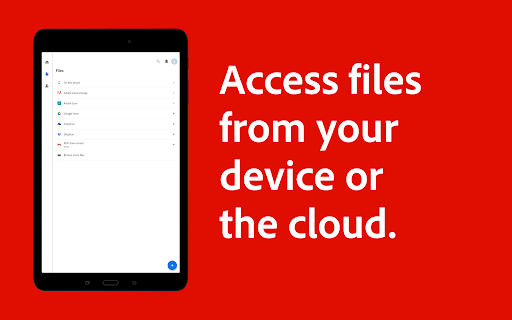
Adobe Acrobat Reader: Edit PDF feels like the default PDF app for Android not because it is flashy, but because it is dependable. After spending time with it as an everyday document tool, that is still its biggest advantage: it handles the common PDF jobs with very little friction. Open a file, read it, jump between pages, highlight text, add a note, sign a form, save it, and send it back out. In day-to-day use, Acrobat Reader rarely makes those basics feel complicated. The first thing that stood out in my testing was how mature the app feels. A lot of mobile PDF tools can technically open files, but they often feel like thin viewers with a messy editing layer bolted on top. Acrobat Reader is more cohesive than that. Navigation is straightforward, documents render cleanly, and core reading tools are exactly where you expect them to be. On a phone, PDFs are never the most comfortable format in the world, but Adobe does a good job making them manageable, especially with features like Liquid Mode for certain documents. When it works well, dense pages become much easier to read on a smaller screen. Annotation is another area where the app remains strong. Highlighting text, dropping comments, and marking up documents feels fast and familiar. I especially liked how easy it was to move from passive reading into active review without switching mental gears. For students, office workers, and anyone who lives in contracts, forms, manuals, or class readings, that matters. This is an app that understands PDFs are not just meant to be opened; they are often meant to be worked on. The fill-and-sign experience is one of the app’s most practical strengths. Creating a reusable signature and placing it into forms is simple, and that alone saves a surprising amount of time. If your main reason for installing a PDF app is handling forms from employers, schools, government offices, or clients, Acrobat Reader makes a strong case for itself. It feels much closer to a real document workflow tool than a basic viewer. I also appreciated the sense of continuity across files and storage locations. The app works well with common cloud services, and it is convenient to pull in a file, make edits or notes, then send it back out without too much ceremony. For people who juggle documents across email, cloud drives, and local storage, this convenience is a real quality-of-life win. That said, Acrobat Reader is not friction-free. The biggest annoyance is that Adobe clearly wants the app to be more than a reader now. AI features, premium editing tools, and subscription prompts are woven into the experience enough that you notice them. To Adobe’s credit, the AI side appears more optional than forced, which I appreciated, but the app still carries a certain modern software heaviness. If all you want is a lean, no-nonsense PDF utility, Acrobat Reader can sometimes feel like a very capable tool that is trying a bit too hard to upsell itself. The second weakness is that the line between free and paid features is not always satisfying in practice. The free version is genuinely useful and not crippled, which deserves praise. You can absolutely get real work done without paying. But once you start pushing beyond the basics, especially with editing and conversion tasks, the app reminds you that Adobe’s fuller toolkit sits behind a subscription. That is understandable, but it can still be frustrating if your needs are occasional rather than professional. Performance is mostly solid, but file management is not always as snappy as I would like. Opening and reading documents is generally smooth, yet browsing for PDFs on-device can sometimes feel slower than it should in an app this polished. It is not a dealbreaker, but it breaks the otherwise efficient rhythm, especially if you handle lots of saved files. A third complaint is that the interface, while polished, is no longer minimal. Acrobat Reader has accumulated enough features that some screens feel busier than necessary. Newer users will still find the basics quickly, but there is a difference between being full-featured and feeling crowded. Adobe mostly stays on the right side of that line, though not always. Who is this app for? It is for people who regularly deal with PDFs and want one app that can read, annotate, sign, and handle light document work without drama. Students, office workers, freelancers, and anyone dealing with forms or shared documents will get a lot out of it. It is also a good fit for users who trust Adobe’s ecosystem and like having cloud-connected tools that feel stable. Who is it not for? If you want an ultra-lightweight PDF app with zero account nudges, zero premium temptations, and a stripped-down interface, this may feel like more app than you want. It is also not the best emotional fit for someone who needs advanced features only once in a while and dislikes seeing subscription gates around them. Overall, Adobe Acrobat Reader remains one of the best PDF apps on Android because it gets the fundamentals right and layers useful tools on top of them. Reading is comfortable, annotation is excellent, signing documents is genuinely convenient, and the whole experience feels more professional than most mobile alternatives. Its biggest flaws are not incompetence but ambition: more features, more premium hooks, more complexity. Even so, for most people who need a serious PDF app on their phone, Acrobat Reader is still the safest recommendation.