
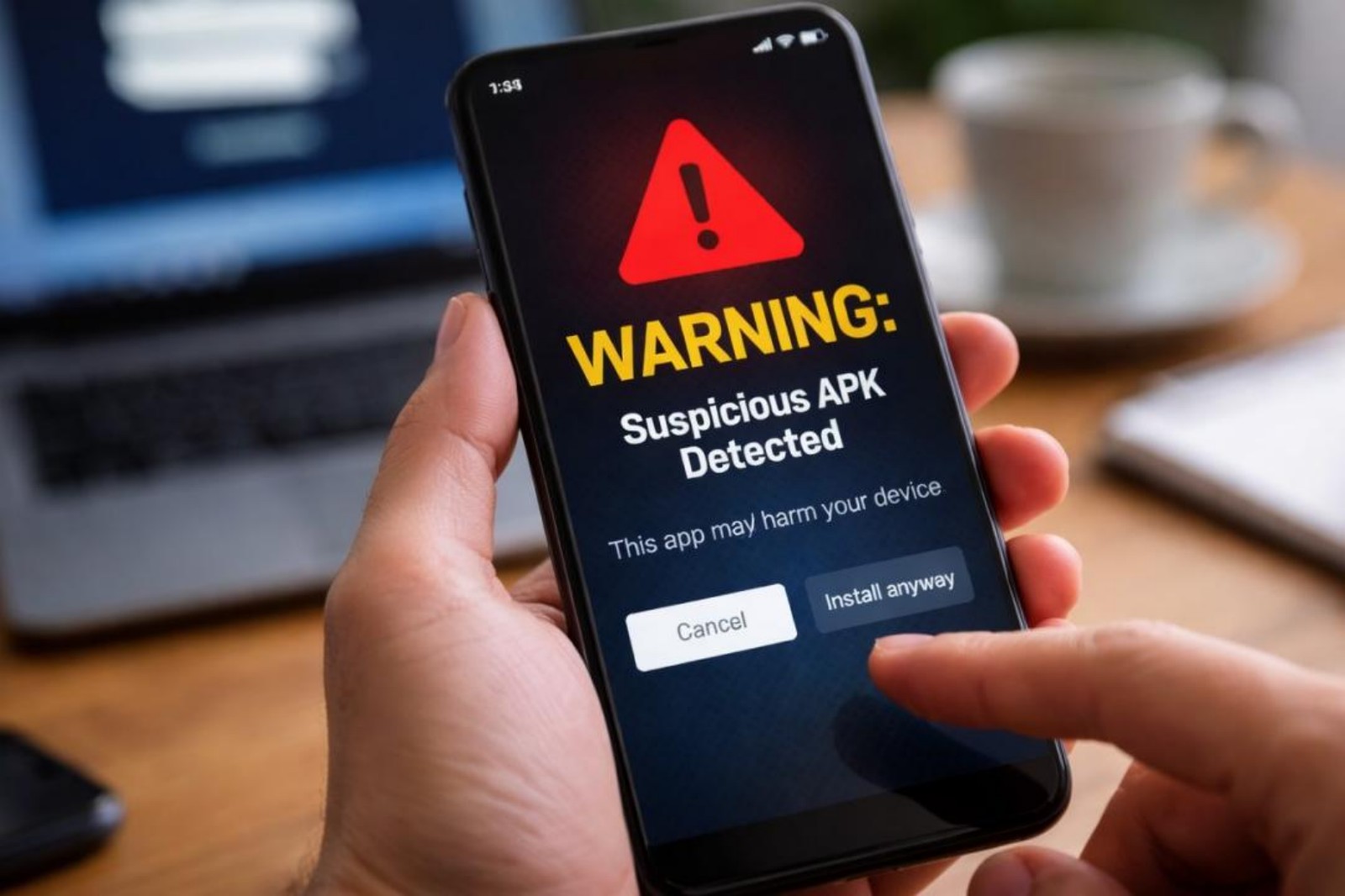
How to Check if an APK File is Safe Before Installing (A Step-by-Step Guide).
Content
How to check an APK before you install it
Installing an APK manually can solve a real problem. Sometimes an app is unavailable in your region, an update has not rolled out yet, or you need a version that is not showing in the Play Store. But sideloading also removes one layer of protection: you are taking responsibility for checking the file yourself.
That does not mean every APK is dangerous. It does mean you should slow down and inspect it before tapping Install.
This guide walks through a practical, repeatable process for checking whether an APK seems safe enough to install. It also shows where Android security apps can help, especially if you regularly test files from outside the official store.
Step 1: Start with the source, not the file
Before you scan anything, ask a basic question: where did this APK come from?
A clean-looking file name does not prove much. The first safety check is whether the download source is trustworthy and expected. If the APK was sent through a random message, linked from a suspicious page, or bundled with vague instructions, that is already a reason to pause.
This is also where a broader security app can help. dfndr security: antivirus is the strongest fit in this list if your concern starts before installation, because its supplied features include protection against scams, fake websites, spoofed text messages, and privacy risks in apps. If you arrived at the APK through a questionable link, a tool like this is more useful than an app that only cleans junk files after the fact.
A practical rule: if you do not trust the source, do not try to "fix" the problem by installing first and scanning later.
Step 2: Check whether the app's purpose matches the APK you found
Next, look at what the app claims to be.
A calculator APK that asks you to download from an obscure page, a wallpaper app packaged with aggressive "booster" claims, or a file that imitates a well-known app name should all make you more cautious. You are not proving malware here; you are checking for mismatch.
This step is simple, but it matters because many risky installs start with false familiarity. Something that looks almost right can still be wrong.
If you want a straightforward security app to keep nearby during this review process, Neat Security:Clean, Antivirus looks appealing for beginners because its listed strengths are a clean interface, real-time scanning, and an organized layout. That matters in practice: a confusing security tool often gets ignored, while a clear one is more likely to be used before you make a rushed installation decision.
Step 3: Scan the APK before opening it
Once you have decided the source is at least plausible, scan the file before installation.
This is where antivirus-focused apps become genuinely useful. In the provided app set, several can play this role:
- dfndr security: antivirus offers automatic threat detection, app scanning, anti-fraud protection, and privacy risk scanning.
- Super Security: Safe Antivirus explicitly says it can scan and remove viruses and alert you when spyware or adware-infected apps are downloaded onto your device.
- AntiVirus Purger & Security emphasizes malware protection and real-time monitoring for suspicious activity.
- Neat Security:Clean, Antivirus highlights real-time scanning and regular updates.
For this specific job, Super Security: Safe Antivirus is a practical option if you want something simple. Its feature list is direct: scan for malware, spyware, Trojans, and adware-related risk. That makes it relevant to APK checking, because sideloaded files often raise exactly those concerns.
Meanwhile, AntiVirus Purger & Security may appeal if you prefer a narrower, easier-to-understand security layer. The supplied data does not suggest as many extra features as dfndr, but that can be a trade-off rather than a flaw. Some users want a lighter decision: "scan this and keep watching for suspicious behavior."
The key point is not to rely on a single impression. Let a security app inspect the file before you install it.
Step 4: Treat real-time protection as a second opinion
A one-time scan is helpful, but it is not the whole story.
Some apps appear harmless until they are installed and begin requesting permissions, running in the background, or connecting to external services. That is why real-time protection matters.
This is where dfndr security: antivirus, Neat Security:Clean, Antivirus, and AntiVirus Purger & Security each have a useful role. All three, based on the provided data, offer some form of ongoing or real-time protection. In practice, that means your device is not relying only on the moment before installation; it also has a chance to react if an app behaves suspiciously afterward.
If you install APKs only occasionally, you may be fine with a broad app like dfndr. If you test them more often and want a clear interface, Neat Security may feel easier to manage. If your priority is simple real-time monitoring, AntiVirus Purger & Security seems targeted toward that need.
Step 5: Review permissions immediately after installation
Even if an APK installs successfully and no antivirus app raises an alert, you should still inspect what the app wants access to.
Ask whether the permissions make sense for the app's purpose. A messaging app needing contacts may be expected. A flashlight app asking for broad access to unrelated data should make you stop and reconsider.
This is also where privacy-focused monitoring becomes valuable. dfndr security: antivirus is notable here because the supplied data mentions privacy risk scanning in apps and credential monitoring. That does not mean it can guarantee safety, but it does make it one of the better choices in this group if you worry about risks beyond classic malware.
The trade-off is that feature-rich security apps can feel heavier, and reviews for dfndr mention ads in the free version. For many users, that is acceptable because the app covers more ground. For others, a simpler tool may be more comfortable.
Step 6: Watch what happens after first launch
The first few minutes after installation are important.
Pay attention to signs like:
- aggressive pop-ups
- unexpected redirects
- sudden battery drain
- unexplained overheating
- background processes that seem excessive
- immediate prompts for unrelated permissions
No single symptom proves an APK is malicious, but a pattern matters.
This is another stage where Super Security: Safe Antivirus and AntiVirus Purger & Security can help. Both are framed around malware detection and active protection. If you are experimenting with an APK and something feels off after launch, run another scan instead of assuming the first result was definitive.
Step 7: Clean up properly if you decide the APK was a mistake
Sometimes the safest decision comes after installation: you test the app, spot red flags, and remove it.
Uninstalling is the first step, but not always the last. Residual files, cache, and background clutter may remain, especially if you install and remove APKs often.
That is where the more cleanup-oriented apps in this list become relevant.
Safe Cleanup - Cleaner&Booster is the least directly focused on pre-install APK vetting, but it still has a practical role in this workflow. Its listed features center on automatic junk cleaning, clearing residual data, optimizing performance, and managing battery-draining background programs. If you often test APKs and then remove them, this kind of cleanup can help restore order afterward.
Super Security: Safe Antivirus also overlaps here, offering junk cleanup, duplicate photo cleanup, and storage tools in addition to antivirus scanning. The trade-off is obvious: all-in-one tools can be convenient, but not every feature is equally important if your only goal is deciding whether an APK is safe. Use the cleanup extras as support, not as proof that a file was trustworthy.
Step 8: Use identity and network warnings as part of the picture
Some APK risks are not limited to infection. A suspicious app can also expose you to scams, account compromise, or shady network behavior.
That is why dfndr security: antivirus stands out in this app group. Beyond antivirus scanning, the provided data includes anti-fraud warnings, fake website protection, spoofed text message alerts, Wi-Fi visibility, stolen-device protection, and credential monitoring through ID theft reporting.
Not every sideloaded APK leads to those issues, of course. But if you are trying to judge overall safety, those extra layers matter. An APK that seems technically clean but pushes you toward phishing pages or sketchy permissions can still be a bad install.
This is the main comparison worth making:
- dfndr security: antivirus is the best all-around choice if you want broader risk coverage.
- Super Security: Safe Antivirus is strong if you want malware scanning plus cleanup in one place.
- Neat Security:Clean, Antivirus is appealing if you value a user-friendly, less intimidating layout.
- AntiVirus Purger & Security is a reasonable pick if you want simple malware scanning and real-time defense.
- Safe Cleanup - Cleaner&Booster is best seen as a post-test maintenance tool, not your primary APK safety judge.
A simple checklist you can reuse
If you want a quick routine, use this order every time:
- Verify the source of the APK.
- Check whether the app name and purpose make sense.
- Scan the file with a security app before installing.
- Keep real-time protection enabled.
- Review permissions after installation.
- Watch for suspicious behavior on first launch.
- Uninstall and clean leftovers if anything feels wrong.
This process is not glamorous, but it is practical. Most APK mistakes happen because users skip straight from download to install.
Which app should you use?
If you want one app to anchor the process, dfndr security: antivirus is the safest editorial pick from this dataset because it covers the widest range of risks around sideloading: malware, fraud, privacy issues, suspicious messages, and compromised credentials.
If you want a simpler scan-first experience, Super Security: Safe Antivirus is a sensible alternative, especially if you also value cleanup tools.
If you are new to mobile security apps and want less clutter, Neat Security:Clean, Antivirus looks easier to approach.
If your preference is straightforward monitoring, AntiVirus Purger & Security is a reasonable option.
And if you frequently remove test APKs and want to tidy up afterward, Safe Cleanup - Cleaner&Booster can support that workflow, even though it is not the main tool for judging whether an APK should be trusted in the first place.
Final thought
No security app can turn a reckless install into a smart one. The safest habit is still caution: question the source, scan the file, review permissions, and watch behavior after installation.
Security apps are most helpful when they support that habit rather than replace it. Used that way, they can give you an extra layer of confidence before you sideload an APK.
Conclusion
Checking an APK before installation is less about finding a magic signal and more about following a sensible process. Start with the source, scan the file, keep real-time protection active, and pay attention to permissions and behavior after install. Among the apps here, dfndr security: antivirus offers the broadest safety net, while Super Security, Neat Security, AntiVirus Purger & Security, and Safe Cleanup each fit different parts of the workflow.
Apps in this article

Why included: dfndr security: antivirus is the most rounded option in this set for pre-install caution, thanks to antivirus scanning, anti-fraud alerts, privacy risk checks, and reports on compromised credentials.
Best for: Users who want broad protection before and after sideloading APKs.
Watch out: User reviews mention ads in the free version, so the experience may feel busier than simpler tools.

Why included: Super Security: Safe Antivirus focuses on malware scanning and alerts for spyware or adware-infected apps, which is directly relevant when you're testing APKs from outside official stores.
Best for: People who want a simple scan-and-clean workflow with extra storage cleanup tools.
Watch out: Its feature list leans heavily into cleaning and boosting, which may be useful but is not the same as deep APK analysis.

Why included: Neat Security:Clean, Antivirus stands out for its clear interface and real-time scanning, making it a good fit for users who want straightforward checks without much friction.
Best for: Beginners who want easy navigation and basic antivirus support around APK installs.
Watch out: The supplied data is lighter on advanced security extras than some competing apps.

Why included: AntiVirus Purger & Security offers malware scanning and real-time protection, which can help catch suspicious behavior or harmful files around the moment of installation.
Best for: Users who want a simple, always-on layer watching for suspicious activity.
Watch out: Based on the provided data, its toolset appears more focused than all-in-one security apps.

Why included: Safe Cleanup - Cleaner&Booster is less about vetting an APK directly and more about cleaning leftovers, managing background activity, and keeping a device tidy after testing apps.
Best for: People who often uninstall test APKs and want to remove junk and residual files.
Watch out: Its listed strengths are mainly cleanup and optimization rather than dedicated fraud or identity-risk protection.