
In-depth review
CapCut has become one of those apps that almost everyone in mobile video editing ends up trying, and after spending serious time cutting short clips, layering text, testing effects, adding captions, and exporting social-ready videos, I understand exactly why. At its best, it feels like a remarkably approachable editor that gives beginners fast results while still offering enough control to keep more ambitious creators interested. At its worst, it feels like an app that keeps reminding you how much better the experience would be if you paid.
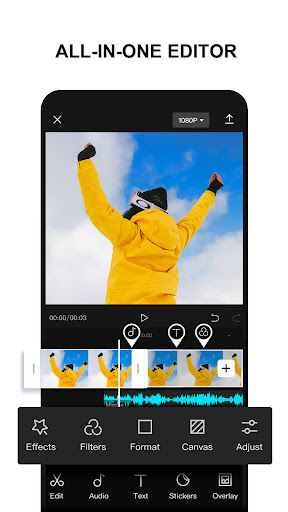
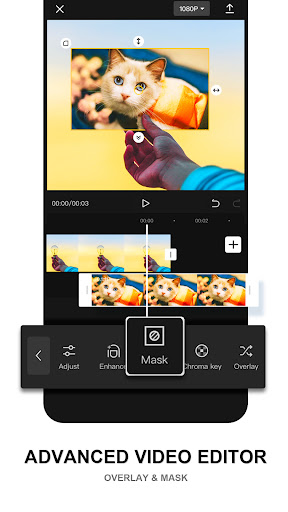
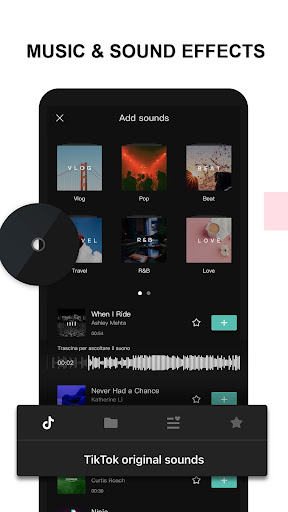
The first thing CapCut gets right is onboarding through interface design rather than tutorials. You can open it, drop in a few clips, and start trimming almost immediately. The timeline layout is intuitive, tools are placed where you expect them to be, and the app does a good job of making relatively advanced functions feel less intimidating than they sound. Splitting clips, adjusting speed, dropping in transitions, adding overlays, text, stickers, and music all feel natural within a few minutes. This is one of CapCut’s biggest strengths: it lowers the barrier to entry without making the editor feel toy-like.
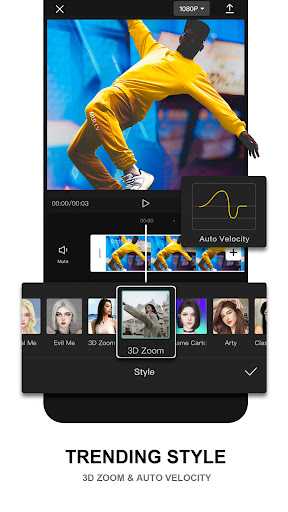
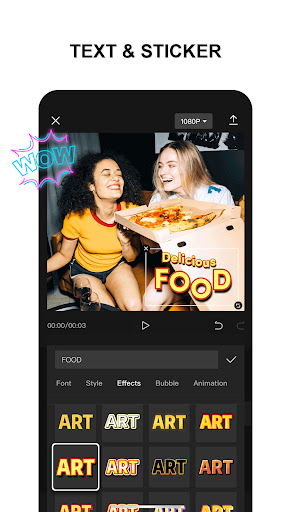
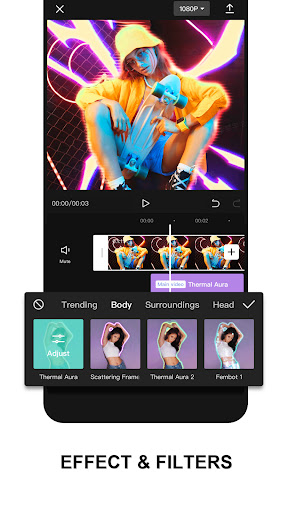
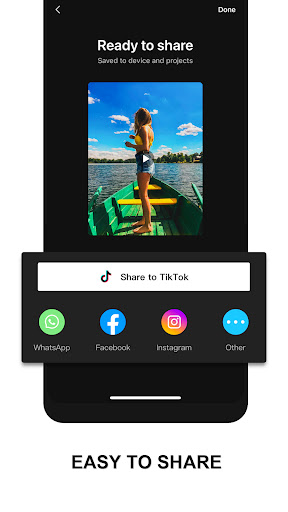
In everyday use, I found the core editing workflow genuinely enjoyable. Simple projects move quickly. If your goal is to make short-form content for TikTok, Instagram, YouTube Shorts, or status-style videos for messaging platforms, CapCut is built for that rhythm. It is easy to take raw footage, tighten it up, add punchy captions, apply a filter, and export something polished without feeling buried under menus. The app also has enough personality to keep the process fun. Effects, transitions, motion tools, and templates are presented in a way that encourages experimentation rather than making editing feel like homework.
That said, the second impression is more complicated than the first. CapCut is generous enough to get you started, but the longer you use it, the more obvious the Pro boundary becomes. Some of the most interesting tools and effects sit behind subscriptions or usage restrictions, and this changes the tone of the app over time. Early on, it feels empowering; later, it can feel slightly transactional. You can still do a lot for free, and I was able to complete basic edits without hitting a wall, but if your style depends on trend-heavy effects, premium assets, or certain AI-driven tools, the app has a habit of letting you build momentum before reminding you that not everything is export-friendly.
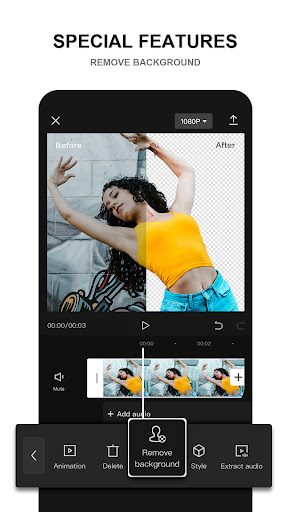
Still, CapCut earns praise for depth. This is not just a basic trimmer with filters. Features like keyframe animation, background removal, text-to-speech, auto captions, multi-track editing, and speed controls make it surprisingly capable on a phone. I especially liked how it balances automation with manual control. Auto captions can save time, but the app still lets you go back and adjust things. That broader pattern runs throughout CapCut: it wants to help you work quickly, but it usually leaves room for refinement. For creators who care about making content look a little sharper than the average one-take upload, that matters.
Performance, however, is not flawless. On lighter projects, CapCut behaves well enough, but once timelines become busier, the app can start showing strain. Preview playback is not always perfectly smooth, and I ran into the kind of minor lag that makes timing edits feel less precise than they should. Audio sync during preview can occasionally feel a beat behind, and on some devices the app clearly pushes storage and memory harder than simpler editors do. None of this made the app unusable in my testing, but it did chip away at the sense of polish. CapCut feels powerful, yet not always effortless.
Another frustration is that some parts of the app can create uncertainty around what exactly is free to use versus what will block export later. That is a subtle but important usability issue. In a creative tool, momentum matters. If I spend time building an edit, the last thing I want is confusion at the finish line. CapCut is at its best when it gets out of the way and lets you create; it is weaker when its monetization logic interrupts the process.
What keeps me recommending it anyway is how much it still gets right moment to moment. The editing canvas is friendly, the toolset is broad, and the results can look impressively polished for a mobile workflow. There is a reason so many casual creators, students, hobbyists, and new YouTubers gravitate toward it. If you are learning video editing, making short social clips, cutting reaction videos, creating aesthetic edits, or adding captions and effects to personal footage, CapCut is one of the easiest places to start and one of the fastest places to improve.
Who is it for? It is for beginners who want a modern editor that does not feel intimidating, and for intermediate mobile creators who want more creative range than a barebones slideshow app can offer. It is also a solid fit for people who edit often enough to justify exploring premium tools. Who is it not for? People who strongly dislike subscriptions, need a consistently stable experience on weaker devices, or want a fully predictable free workflow with no unpleasant surprises at export time may find it frustrating.
In the end, CapCut remains a very good app, but not a frictionless one. Its strengths are easy to see: an approachable interface, a feature-rich editing toolkit, and genuinely strong creative flexibility for mobile video. Its weaknesses are just as real: growing Pro lock-in, occasional lag or instability, and a free experience that can become less transparent the deeper you go. If you can live with those trade-offs, it is still one of the most useful mobile video editors around. If you cannot, the app’s polish may not be enough to outweigh its interruptions.