
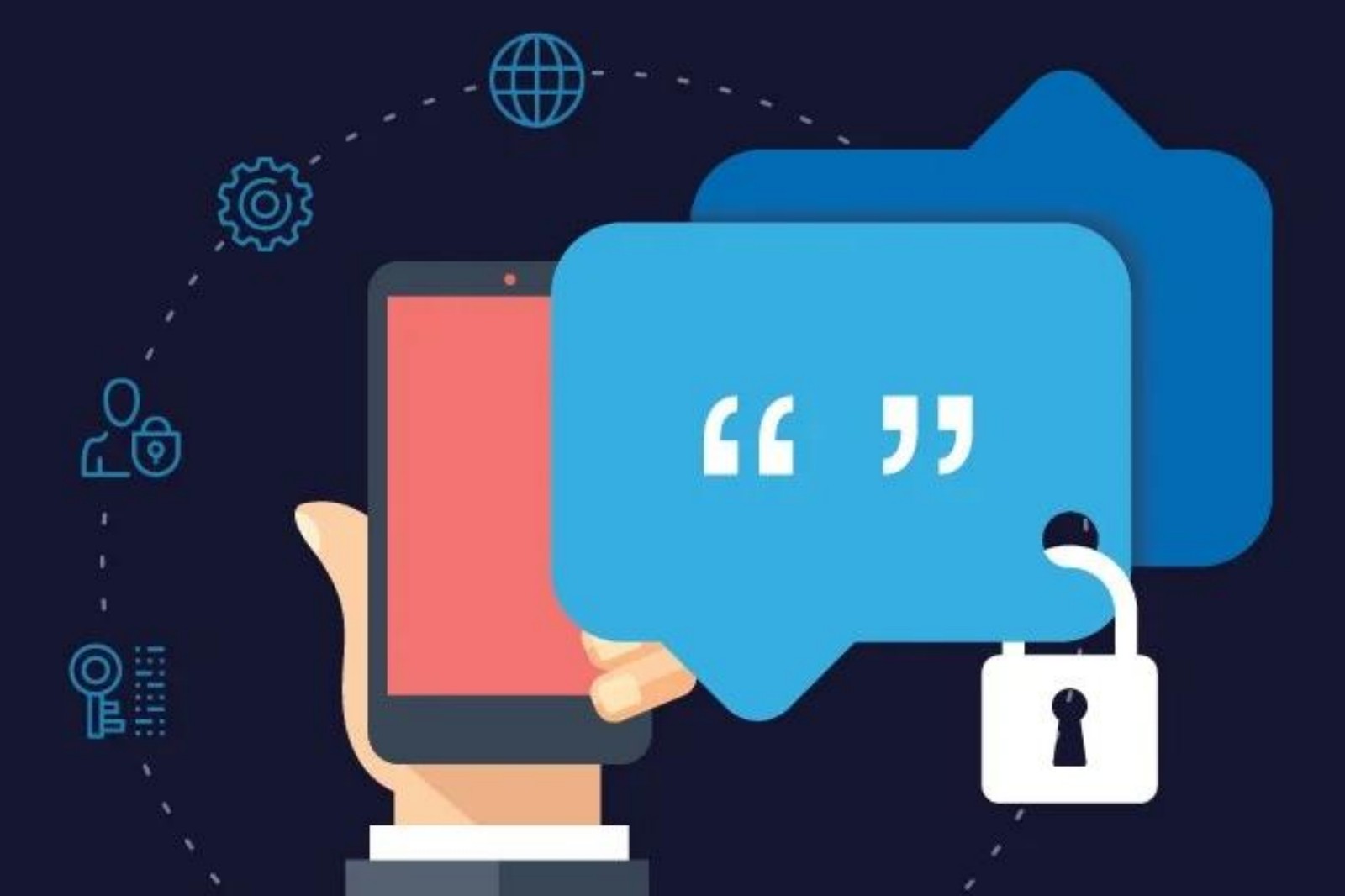
How to Sync Your Files Between Android, iOS, and PC Seamlessly.
Content
How to Sync Your Files Between Android, iOS, and PC Seamlessly
If your digital life is split between an Android phone, an iPhone or iPad, and a PC, “syncing files” can mean several different things. Sometimes you want documents to appear everywhere automatically. Sometimes you just need to move photos off your phone and onto a computer. And sometimes the problem is narrower, like bringing an old iTunes music library onto Android without losing playlists.
That is why a seamless setup usually comes from combining a few tools rather than expecting one app to do everything perfectly. From the apps in this list, Dropbox: Secure Cloud Storage is the closest thing to a universal sync hub. Files by Google and Samsung My Files are better at preparing and managing files locally on Android. iSyncr: iTunes to Android solves a very specific media-transfer headache. And SmartWatch - BT Sync (Wear OS) belongs at the edge of the system, helping keep connected devices in step when your phone is the center of everything.
This guide focuses on practical workflows, not abstract theory.
First, decide what “sync” means for you
Before installing anything, separate your needs into three buckets:
- Cloud sync: Files stay available across devices and update as changes happen.
- Transfer and cleanup: You need to move files around, free up storage, or prepare folders before syncing.
- Special-case syncing: Music libraries, playlists, or connected wearables need their own tools.
That distinction matters because the strongest app for one job is not always the best for another. A good example: Files by Google is excellent for finding duplicates, browsing storage, and moving files to cloud apps, but it is not positioned as a full cross-platform sync platform on its own. By contrast, Dropbox is built around access across devices, but it is less about deep local cleanup on Android.
The simplest all-purpose setup: use Dropbox as your main sync layer
For most people, the easiest route is to make Dropbox the central place for files you genuinely need on Android, iOS, and PC.
Based on the provided data, Dropbox gives you several pieces that matter in a cross-device setup:
- access to files from anywhere
- offline access to files in your account
- preview support for many file types
- link-based sharing, even with people who do not use Dropbox
- automatic photo uploads
- PC or Mac folder sync and backup
- version history and file recovery
That combination is what makes it useful beyond simple storage. A file saved into your Dropbox workflow can be available on mobile and desktop without repeated manual transfers.
A practical Dropbox setup
Step 1: Create a small, deliberate folder structure
On your PC, create a few core folders you actually use, such as:
- Work Documents
- Personal Docs
- Photos to Keep
- Receipts and Scans
- Shared Files
Because Dropbox can sync folders on your computer, keeping the structure simple prevents clutter from spreading across every device.
Step 2: Turn on mobile backup only for files that matter
Dropbox can automatically upload photos and videos from your camera roll. That is convenient, but it is also where storage limits can appear quickly. Reviews in the source data repeatedly praise Dropbox’s speed and reliability, while also noting that free storage can feel tight.
So if you use the free tier, be selective. Automatic photo backup is worth enabling if your priority is safety and access from PC, but it may not be ideal if you shoot a lot of video.
Step 3: Use offline access selectively
One of Dropbox’s more practical features is offline access. For travel, commuting, or patchy connections, mark only key files for offline use rather than everything. That keeps your phone storage under control.
Step 4: Use links instead of duplicate exports
If you regularly send files between devices or people, sharing links can reduce version confusion. Instead of exporting a new copy to email or chat every time, keep one file in Dropbox and share access to it.
Where Dropbox works best
Dropbox is strongest when you want one dependable home for:
- documents you edit across devices
- photos you want off your phone but still accessible
- files you may need on PC and mobile
- shared folders with other people
Trade-offs to keep in mind
Dropbox is not perfect. The source data makes two caveats clear:
- free storage can run out quickly, especially with photo and video backups
- paid upgrades may become necessary if your library grows
That does not make it a poor choice. It just means Dropbox works best when you treat it as a curated sync space rather than a dumping ground for every file you own.
On Android, clean up and stage files with Files by Google
A lot of sync friction starts before files ever reach the cloud. Phones fill up with duplicate downloads, old screenshots, chat images, and oversized videos. If that mess is left untouched, syncing becomes slower and harder to manage.
This is where Files by Google earns its place.
According to the supplied data, it helps you:
- free up space with cleaning recommendations
- browse and search files quickly
- sort files by size
- find duplicates and old files
- move files to Google Drive, an SD card, or other cloud storage apps installed on the device
- share files offline with Quick Share to Android and Chromebook devices
- secure files with a separate PIN or pattern
A practical Files by Google workflow before syncing
Step 1: Find what is taking up space
Open Files by Google and use its storage views and recommendations to identify:
- duplicate photos
- large videos
- old downloads
- leftover chat media
- rarely used files
This matters because there is little point syncing junk to the cloud.
Step 2: Separate “archive” from “active” files
Move files into two groups:
- Active: things you need on multiple devices now
- Archive: things you want to keep but do not need constantly
Your Active files are good candidates for Dropbox. Archive material can stay on SD card, external storage, or be moved to a cloud service for safekeeping without becoming part of your daily sync loop.
Step 3: Back up or move selected files
Files by Google can move files to Google Drive or share them to other cloud storage apps on your device. In practice, that makes it a good staging tool before sending important folders into Dropbox or another destination.
Where Files by Google fits in this guide
Think of Files by Google as your Android-side control panel. It does not replace a cross-platform sync service, but it makes that service work better by reducing clutter first.
That distinction is important. If your files are messy, cloud sync feels messy too.
If you use a Samsung phone, Samsung My Files can be even more hands-on
For Samsung users, Samsung My Files may be the more natural file manager. It is built around classic file-explorer tasks and supports management across:
- phone storage
- SD cards
- USB drives
- connected cloud storage services
The app data also highlights useful tools such as:
- storage analysis
- categories for file types
- folder shortcuts
- creating, moving, copying, compressing, and decompressing files
- support for cloud services including Google Drive and OneDrive
When Samsung My Files is better than Files by Google
Samsung My Files is especially useful if you prefer a more traditional file-management experience. If your workflow involves manually copying folders, renaming batches, handling ZIP files, or moving content between phone storage and USB or SD media, it can feel more like using a desktop file explorer.
That makes it a good companion to Dropbox when you want tighter manual control.
A Samsung-focused sync routine
- Use Storage Analysis to identify large files.
- Move old media off internal storage to SD card or USB if you do not need it syncing constantly.
- Keep a small set of folders for cloud sync.
- Send those folders to connected cloud storage as needed.
Trade-offs to note
Samsung My Files is clearly capable, but the review data hints at occasional inconsistency with some cloud destinations. One user mentions errors moving files to OneDrive while Google Drive worked well. Another praises network storage support. So the cautious takeaway is simple: cloud integration is useful here, but the smoothness may vary depending on the service and device.
Moving from iPhone to Android with a PC music library? Use iSyncr
Not every sync problem is about documents and photos. One of the most annoying transitions for switchers is music, especially if years of listening history live in iTunes.
That is where iSyncr: iTunes to Android has a clear purpose.
From the source data, iSyncr can sync from a PC or Mac iTunes library to Android, including:
- playlists
- music
- podcasts
- non-DRM videos
- album art
- ratings
- play counts
- last played and last skipped data
It works over USB/MTP or Wi-Fi and requires a desktop companion app.
Why this matters in an Android-iPhone-PC article
If you are coming from iPhone or still maintain media on iTunes, ordinary cloud storage will not preserve the same listening structure. A music folder copied by hand is not the same as a synced library with playlists and metadata.
That is iSyncr’s value: it is built for a narrower but very real migration problem.
How to use iSyncr sensibly
- Install the required desktop component on your PC or Mac.
- Connect your Android device by USB or Wi-Fi.
- Start with one or two playlists before attempting a full library.
- Check for DRM-protected content, since the app will not sync copy-protected files.
- If your library is large, expect that you may need the paid unlock for unlimited syncing.
Trade-offs to keep in mind
The app’s strength is also its limitation. iSyncr is not a general cloud sync service. It is for music-library migration and maintenance. The free version is limited to 100 songs per playlist and one playlist at a time, and some reviews suggest setup can require patience, especially during initial desktop pairing.
Still, if your biggest sync pain point is “How do I get my iTunes world onto Android properly?”, this is the app in the dataset that addresses that problem directly.
Where SmartWatch - BT Sync fits, and where it does not
At first glance, SmartWatch - BT Sync (Wear OS) is different from the other apps here, because it is not built as a file-sync platform between phone and PC. Still, it can be part of a seamless multi-device setup if your phone is also feeding a smartwatch.
Based on the supplied data, the app focuses on:
- Bluetooth-based sync between Android phone and smartwatch
- receiving messages, emails, and call alerts on the watch
- notes, alarms, and reminders
- support for many smartwatch brands
Why mention it in a file-sync tutorial?
Because “seamless” often means more than files alone. Once your documents, photos, and media are organized, your phone becomes the central device in a broader ecosystem. SmartWatch - BT Sync helps extend that continuity to your wearable, especially for notifications and quick information access.
But be realistic
This app does not replace Dropbox, Files by Google, Samsung My Files, or iSyncr. It sits beside them. Use it if your workflow includes a smartwatch and you want your phone’s connected life to feel more unified. Do not use it as your core file-sync answer.
Best setup by scenario
Scenario 1: You want one simple system for everything important
Use Dropbox as your main sync service.
Add Files by Google on Android to clean and organize before upload.
This is the best fit for most people who care about documents, photos, and dependable access on PC and phone.
Scenario 2: You use a Samsung phone and like manual control
Use Dropbox for cross-device availability.
Use Samsung My Files for moving, compressing, sorting, and staging files locally or across SD/USB/cloud locations.
This setup is especially useful if your phone stores lots of media and you want to decide exactly what gets synced.
Scenario 3: You are switching from iPhone to Android but want to keep iTunes intact
Use iSyncr for your music library.
Use Dropbox for documents and photos.
That split is often more realistic than trying to force one app to handle both media-library metadata and everyday file syncing.
Scenario 4: You are running out of space on Android
Start with Files by Google or Samsung My Files.
Clean duplicates, identify large files, and move only your most important folders to Dropbox. This avoids paying for extra storage before you know what is worth keeping in active sync.
Tips for keeping sync problems from coming back
Keep your synced folders small and intentional
The more files you throw into a sync service, the harder it becomes to find anything. Sync your working set, not your entire digital history.
Do not mix active and archival storage blindly
Old backups, random downloads, and years of screenshots should not live in the same folders as the files you edit every week.
Use local file managers regularly
Whether you prefer Files by Google or Samsung My Files, regular cleanup prevents the “my phone is full and nothing syncs properly” cycle.
Be careful with music libraries
If your music comes from iTunes, use iSyncr instead of assuming a plain file transfer will preserve playlists and metadata.
Remember that convenience can cost storage
Dropbox’s automatic photo backup is useful, but video-heavy libraries can outgrow free storage quickly. That is not a flaw so much as a planning issue.
The bottom line
If your goal is to sync files seamlessly between Android, iOS, and PC, the strongest foundation in this app set is Dropbox. It is the most direct answer for cross-device access, backup, sharing, and desktop integration.
But seamless syncing is rarely about one app alone. Files by Google and Samsung My Files make the Android side cleaner and more manageable. iSyncr solves the very specific challenge of carrying an iTunes library over to Android without losing the structure that matters. And SmartWatch - BT Sync helps your broader device setup stay connected, even if it is not the main file-sync engine.
In other words, the most reliable setup is usually a combination: one cloud hub, one local file manager, and one specialist tool only where you truly need it.
Conclusion
For most people, the cleanest path is simple: use Dropbox as your cross-device file hub, then rely on Files by Google or Samsung My Files to keep Android storage organized and selective. If your real pain point is iTunes migration, add iSyncr rather than forcing a generic file tool to do specialist work. And if your connected setup extends to a smartwatch, SmartWatch - BT Sync can help maintain continuity around the edges. Seamless syncing is less about finding one magic app than about using the right one for each layer of the job.
Apps in this article
Why included: Dropbox is the clearest cross-platform anchor in this lineup, with cloud backup, offline access, link sharing, version history, and PC folder sync.
Best for: People who want one main system for documents, photos, and shared files across mobile and desktop.
Watch out: Free storage is limited, and several reviews note that larger libraries can push you toward a paid plan.
Why included: Files by Google helps prepare, clean up, move, and back up files on Android before syncing them elsewhere.
Best for: Android users who need to organize local storage, remove duplicates, and move files to cloud storage or external media.
Watch out: It is strongest on Android file management; it is not a full cross-platform sync service by itself.
Why included: Samsung My Files is a capable device-level file manager with storage analysis and cloud connections, making it useful for Samsung users who want tighter control over what gets moved.
Best for: Samsung phone owners managing files across internal storage, SD cards, USB drives, and connected cloud services.
Watch out: Some users report inconsistent experiences with certain cloud destinations, so it may not be equally smooth with every service.
Why included: iSyncr fills a specific but important gap: moving iTunes libraries, playlists, and metadata from PC or Mac to Android.
Best for: Anyone switching from iPhone to Android who wants to preserve an existing iTunes music setup.
Watch out: It requires desktop software, excludes DRM-protected content, and the free version has playlist limits.
Why included: SmartWatch - BT Sync is not a full file sync tool, but it is useful when your broader ecosystem includes wearable alerts, notes, and Bluetooth-based device synchronization.
Best for: Users who want their phone data and notifications mirrored more smoothly to a smartwatch while managing multiple connected devices.
Watch out: Its role here is supporting device continuity rather than replacing cloud or desktop file sync.